Fast local PDF markup

PDF Draw

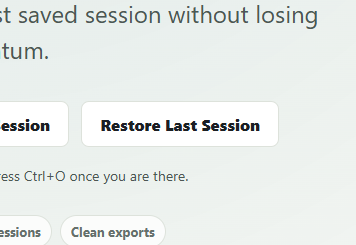
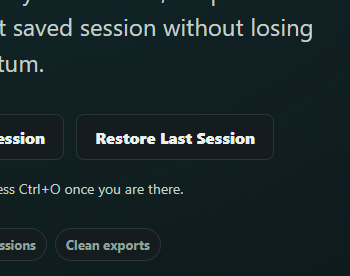
Open PDFs, mark them up directly in your browser, keep a timer in view, and jump back into your last saved session without losing momentum.

Tip: drag a PDF into the editor or press Ctrl+O once you are there.

Autosaves locally Timed sessions Clean exports
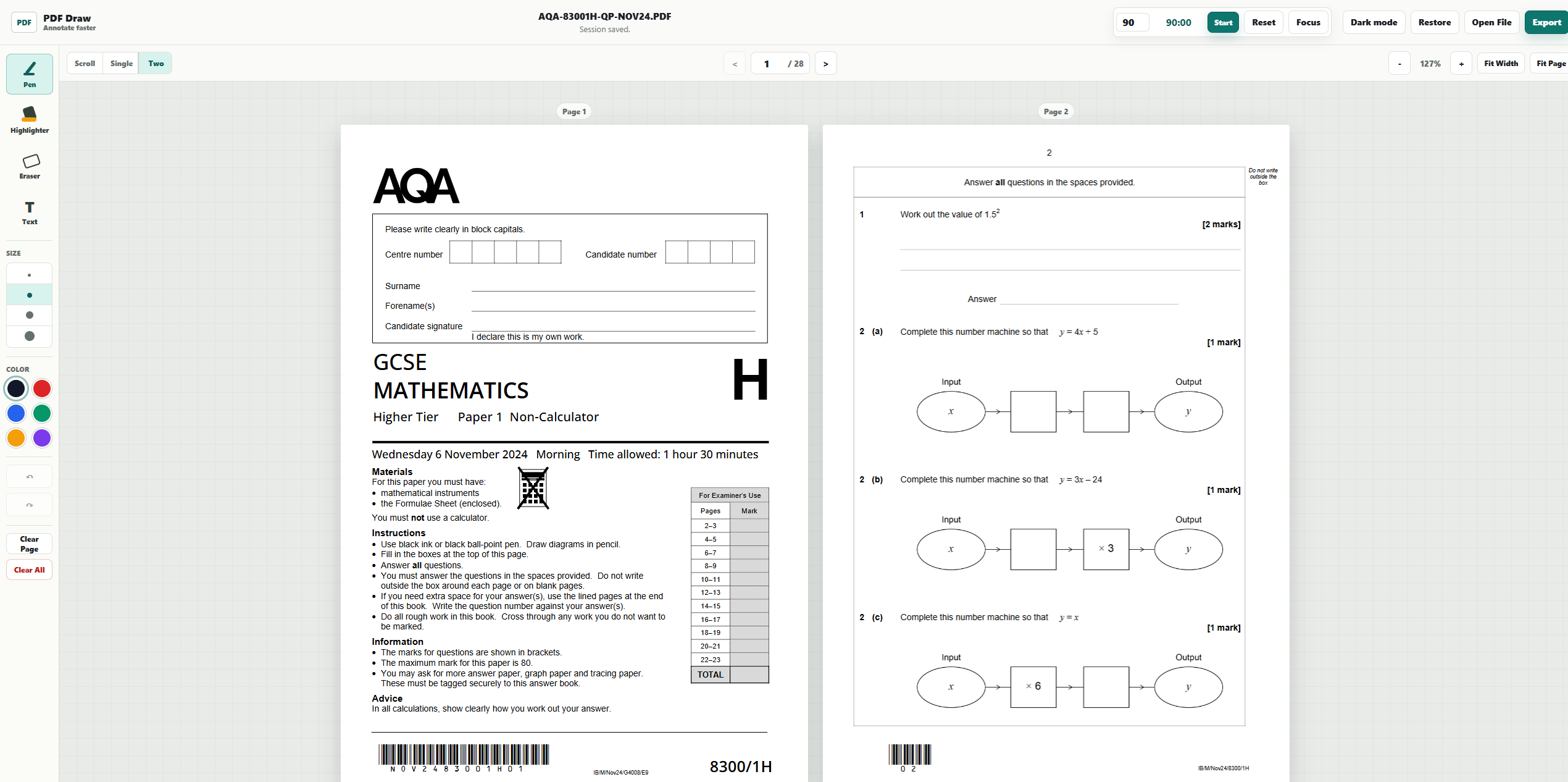
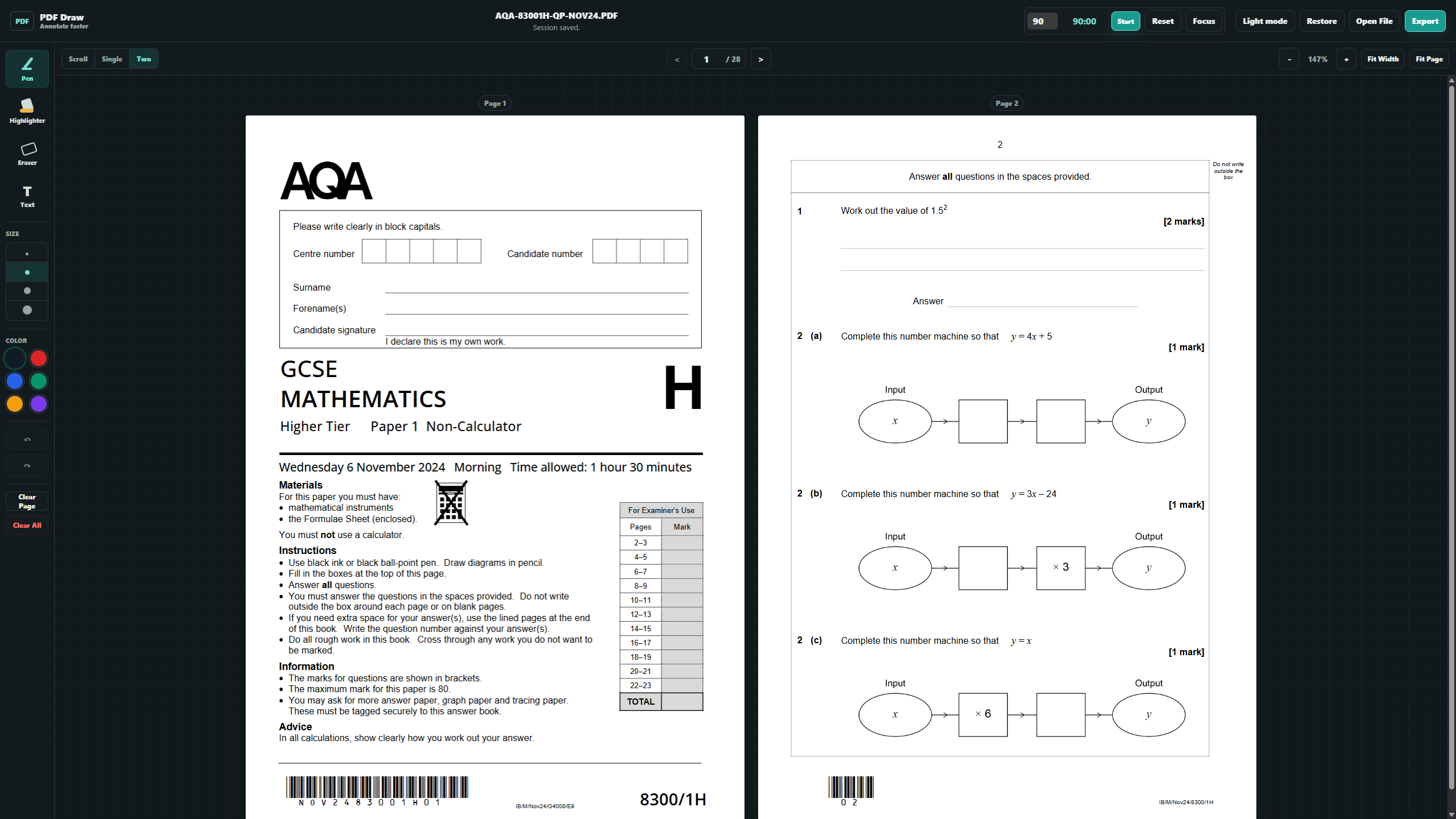
Workspace Preview Drop your own screenshots into the light and dark folders below.
Upload your own workspace preview Light: `assets/images/light/workspace-preview.png` Dark: `assets/images/dark/workspace-preview.png`
PDF Draw workspace preview PDF Draw workspace preview
Open editor image Light: `assets/images/light/open-editor.png` Dark: `assets/images/dark/open-editor.png`
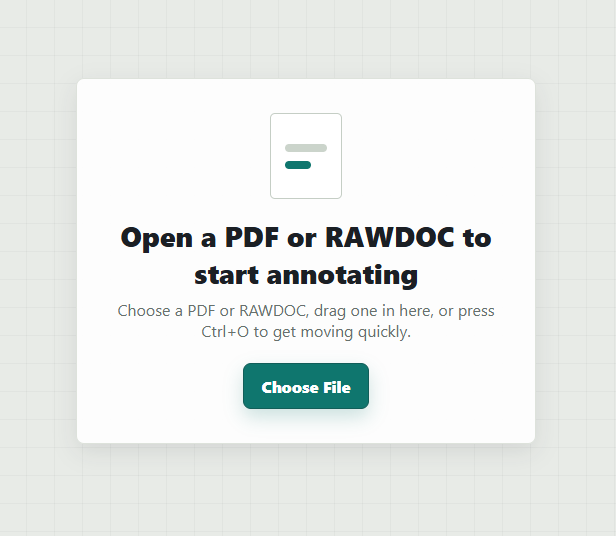
Open editor preview Open editor preview

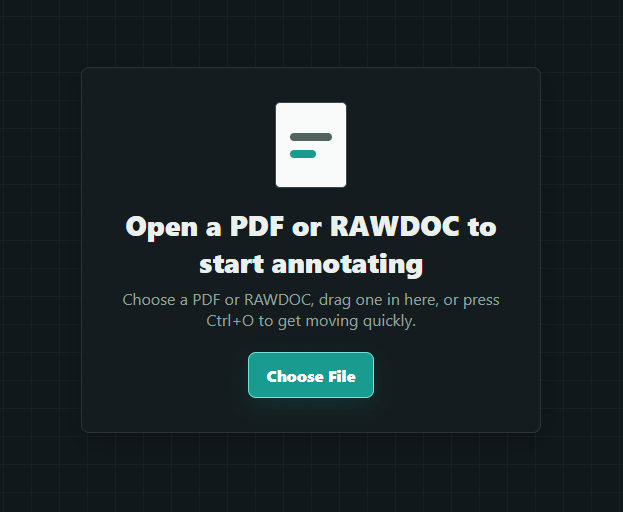
Open PDF / Start Annotating

Load a past paper, worksheet, or notes PDF and start marking it up.
Open Editor
Exam mode image Light: `assets/images/light/exam-mode.png` Dark: `assets/images/dark/exam-mode.png`
Exam mode preview Exam mode preview

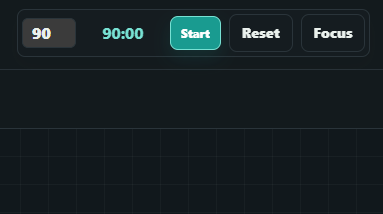
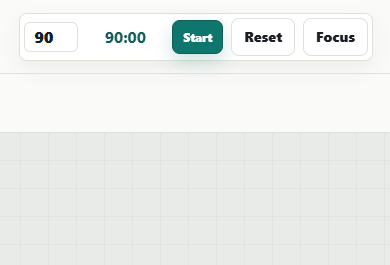
Timer / Exam Mode

Keep remaining time in the editor top bar while completing timed practice.

Use Timer
Export image Light: `assets/images/light/export-annotated-pdf.png` Dark: `assets/images/dark/export-annotated-pdf.png`
Export preview Export preview

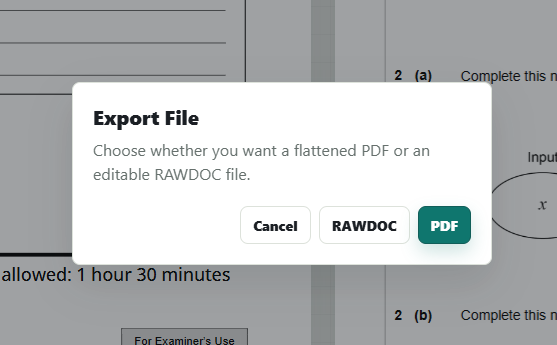
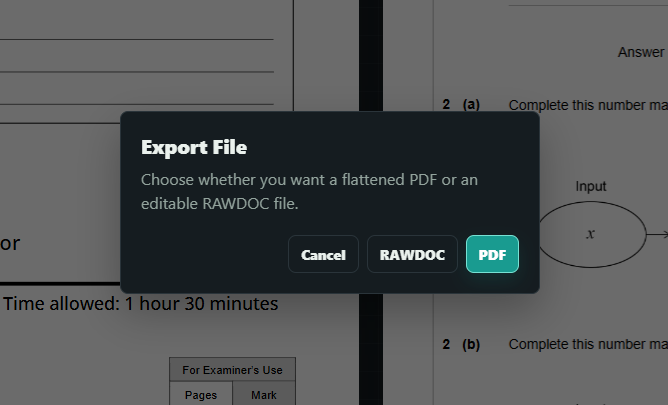
Export Annotated PDF

Save your answers, workings, highlights, and notes as a polished PDF.

Save a Copy
Recent session image Light: `assets/images/light/recent-session.png` Dark: `assets/images/dark/recent-session.png`
Recent session preview Recent session preview

Recent Work / Saved Session

Continue the last saved session when one is available on this device.

Check Session